Carry your settings on a USB drive (INI file)
Like the original's "save settings to an INI file instead of the registry" (portable mode), FFFTP Mac can keep the host list, passwords and options in ffftp.ini next to the app. Put the app and the file on a USB drive and use the same settings on any Mac.
Save settings to an INI file
- Choose Settings... from the Option menu and open the Other tab.
- Check Save settings to the ffftp.ini file, instead of the registry and click OK. The file (ffftp.ini next to the app) is shown in the note on the tab.
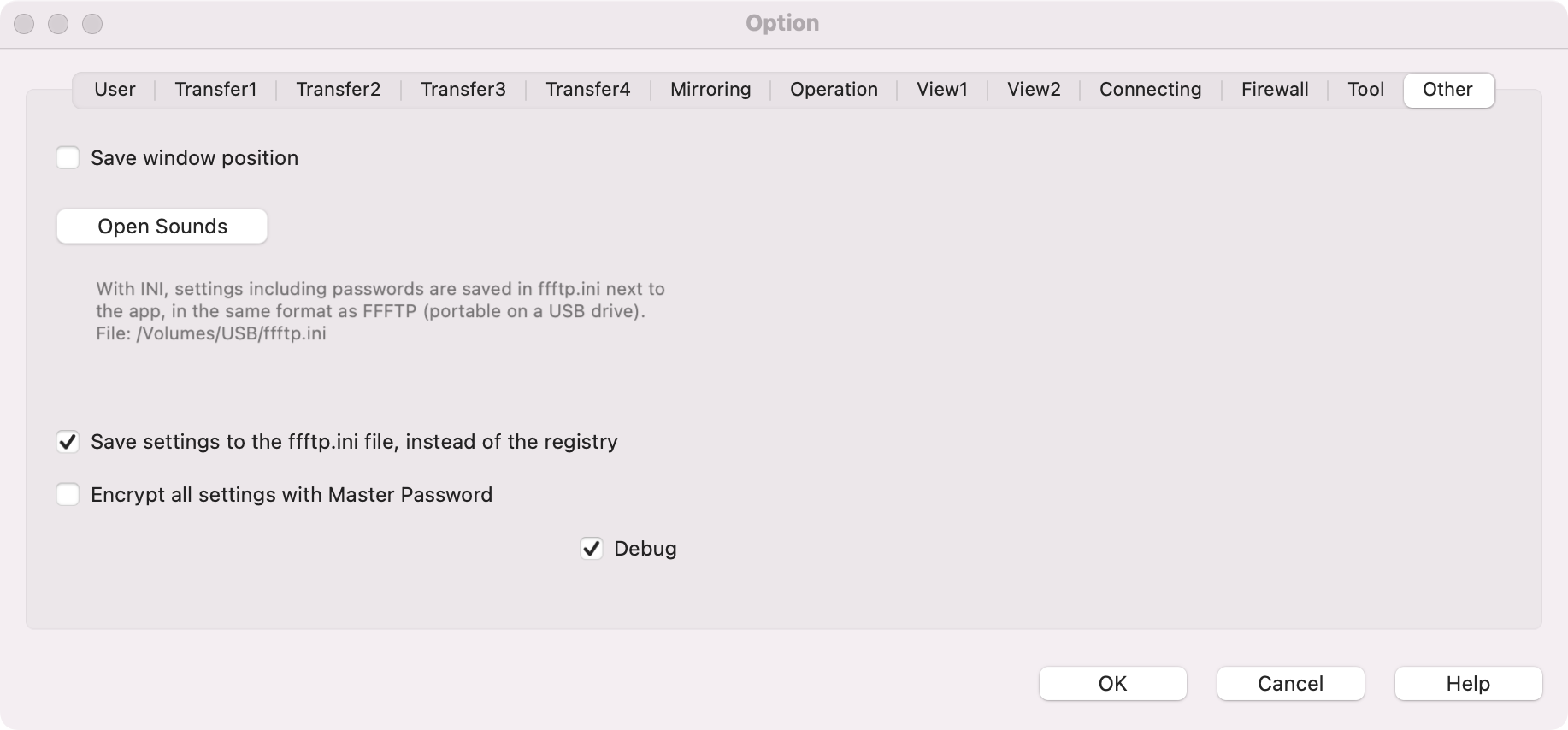
When "Settings are now saved in the INI file (…)." appears in the task window, you are done. From then on, changes are saved in ffftp.ini.
- Passwords are saved in ffftp.ini too (not in the Keychain), encrypted in the same way as the original. Setting a master password with Change Master password... under Connect > Settings makes it safer (you are asked for it at startup).
- If the app's folder cannot be written (a read-only disk and so on), you are told it cannot be saved.
Use it on a USB drive
- Put FFFTP Mac on the USB drive, start it from there, and save settings to an INI file as above.
- The drive now has
FFFTP Mac.appandffftp.iniside by side. - On another Mac, start FFFTP Mac from the drive to use the same settings.
If there is an ffftp.ini next to the app, FFFTP Mac always starts with it (as the original's portable mode). An ffftp.ini from FFFTP on Windows also works.
To stop
Uncheck the item and click OK. The settings go back to this Mac (and the Keychain), and ffftp.ini is removed (as in the original).
Starting with a specific file
To use an INI file somewhere else, pass it with -n (or --ini) at startup. See Advanced features.