Move from FFFTP on Windows
You can bring the host list and settings from FFFTP on Windows to FFFTP Mac, passwords included. No need to register each host again.
There are just three steps.
- In FFFTP on Windows, save the settings to a file
- Copy that file to the Mac
- In FFFTP Mac, load the file
1. In FFFTP on Windows, save the settings to a file
In FFFTP on Windows, choose File → Settings → Save Settings to File... (in the Japanese version: 接続 → 設定 → 設定をファイルに保存).
Save it somewhere easy to find, such as the desktop. The name ffftp.ini is fine (a file saved in .reg format can also be loaded).
2. Copy that file to the Mac
Copy the saved ffftp.ini to your Mac: a USB stick, iCloud Drive or Dropbox, an email to yourself, anything works.
The file contains your passwords in encrypted form. Delete it when you are done, to be safe.
3. In FFFTP Mac, load the file
In FFFTP Mac, choose File → Settings → Load Settings from File... The menus are laid out the same as in Windows.
A file chooser opens. Select the ffftp.ini you copied and click Open.
If you are asked for the master password
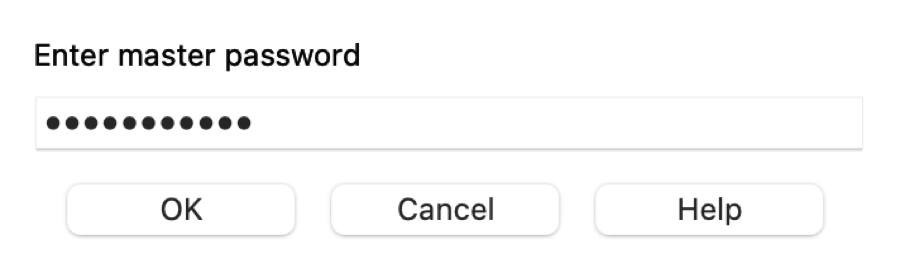
If you set a master password in FFFTP on Windows, you are asked for it. Enter the master password you used on Windows and click OK. (If you did not set one, you are not asked.)
Check that it worked
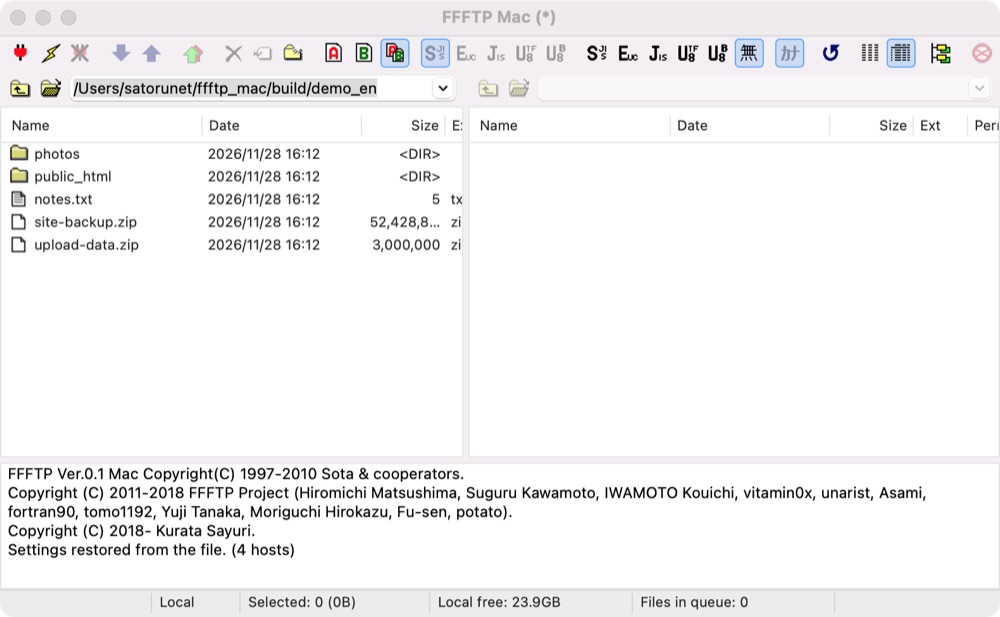
When loading finishes, the task window at the bottom says the settings were restored, with the number of hosts.
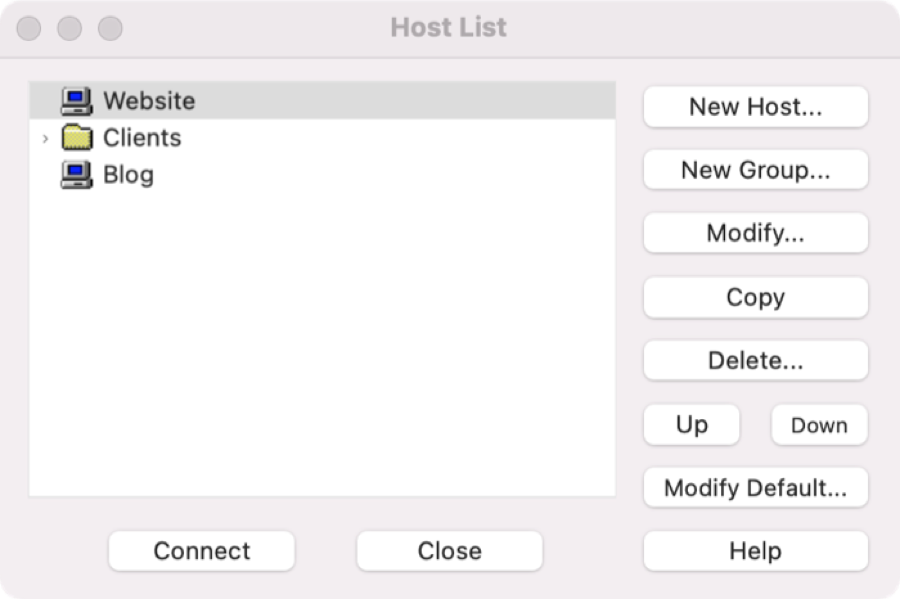
Open the Host List with the Connect button on the toolbar (⌃C): the same hosts and groups as on Windows are there. Select one and click Connect: it connects without typing the password again.
What is brought over
- The host list (with groups), each host's settings, and passwords
- Options, bookmarks and connection history
Passwords go into the Mac Keychain. Local folders written as Windows paths (C:\… etc.) do not exist on the Mac, so they are not brought over.
The hosts currently in FFFTP Mac are replaced by what you load (the same as "Load Settings from File" in the original).
Going back from the Mac to Windows
The other way round, an ffftp.ini made with File → Settings → Save Settings to File... in FFFTP Mac can be loaded by FFFTP on Windows with "Load Settings from File".
Other FTP software
- Import Settings from WS_FTP.INI...: imports the hosts in WS_FTP's WS_FTP.INI.
- Export Settings as FileZilla XML / Export Settings as WinSCP INI: export for other FTP software (passwords are written without encryption, so handle the file with care).