Register a host and connect
Register a host
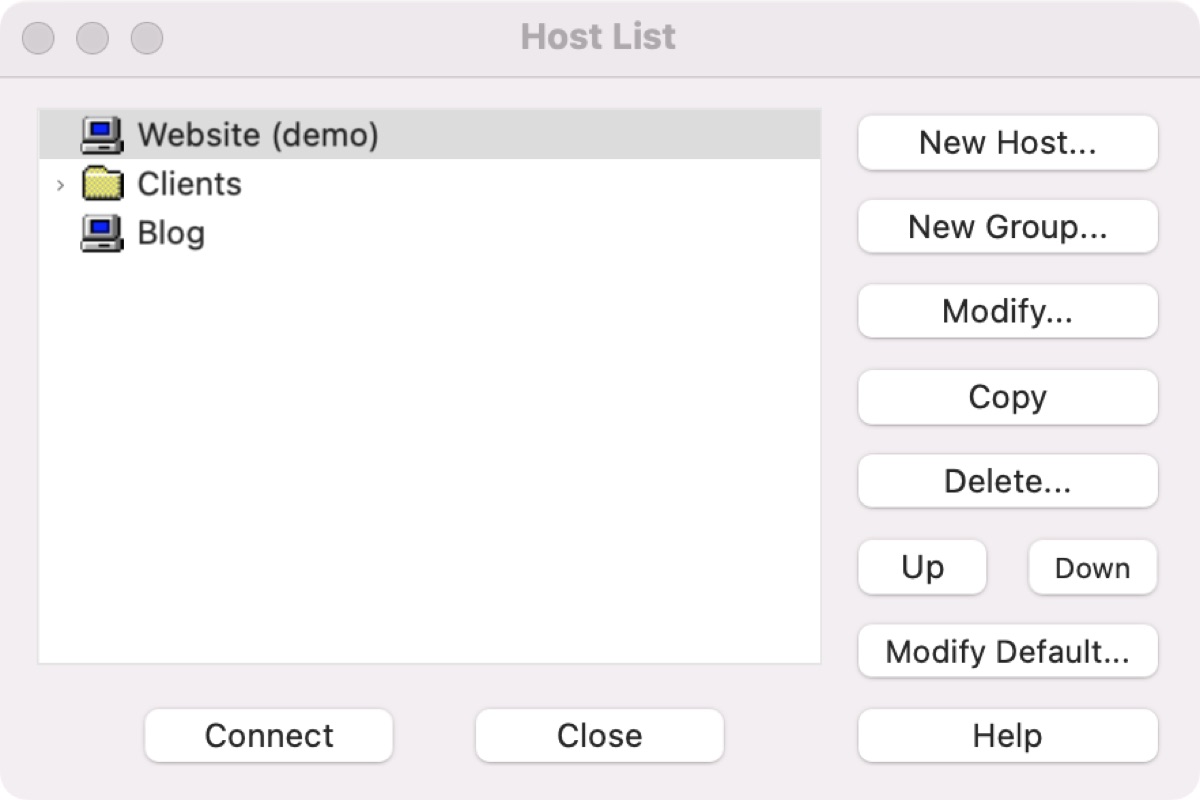
Click the Connect button at the left end of the toolbar (⌃C) to open the Host List, then click New Host....
Host Setting opens. On the General tab, fill in the following and click OK.
- Profile Name: the name shown in the list (anything you like)
- Host Name/Address: the server's name or IP address (for example ftp.example.com)
- Username and Password/Phrase
- Initial Local Folder and Initial Host Folder: the folders opened when you connect (may be left empty)
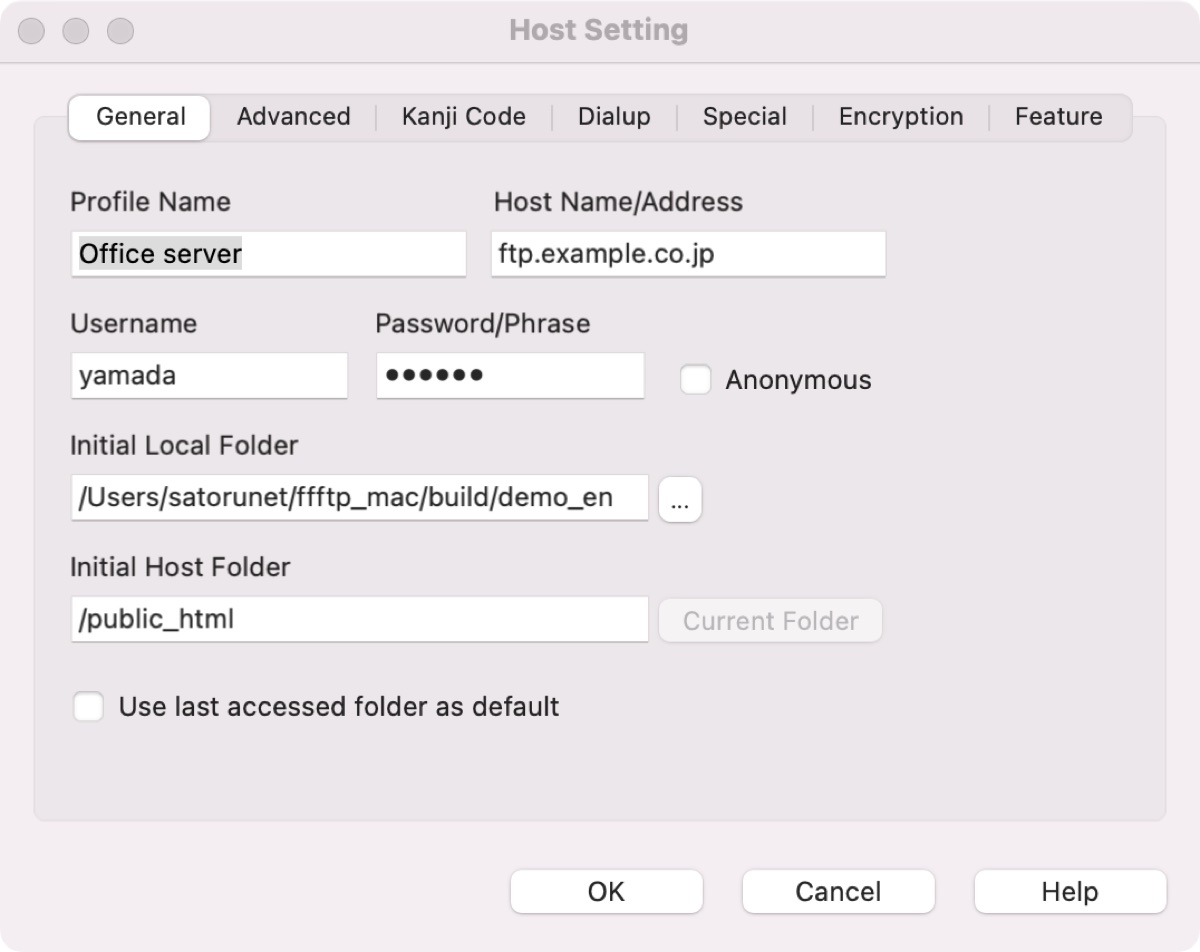
The password is stored in the Mac Keychain (other apps cannot read it).
The other tabs (Advanced, Kanji Code, Special, Encryption, Feature) are the same as the original. Usually you can leave them as they are.
Connect
Select a host in the Host List and click Connect (double-clicking also connects). When the server's files appear on the right, you are connected.
You can also make groups to sort hosts, and reorder them with Up / Down.
Connect without registering (Quick Connect)
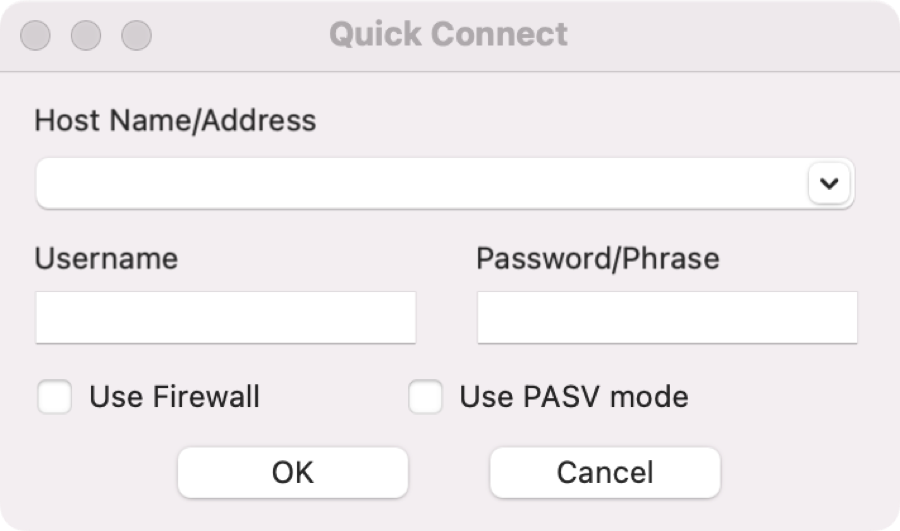
Click the Quick Connect button (⌃Q) and enter the host name, user name and password.
You can also enter a URL in the form ftp://user:password@host/folder.
Encryption (FTPS)
As in the original, FFFTP Mac tries FTPS (Implicit), then FTPS (Explicit), then no encryption, using the ones allowed on the Encryption tab of Host Setting. The left end of the status bar shows Secure or Not Secure.
For a server with a self-signed certificate you are asked whether to continue. If you continue, the same certificate is not asked about again until you quit the app. Check Always trust this certificate (Mac only) to stop being asked from then on.
Connect with SFTP / SCP (SSH)
FFFTP Mac also supports SFTP and SCP, which the original does not. With the default "Auto", it uses SFTP / SCP automatically when there is no FTP server. See Connect with SFTP / SCP (SSH). An FTP server that cannot be reached directly can be reached through an SSH tunnel (jump host).
Dial up or connect a VPN first
FFFTP Mac can dial up (modem / PPPoE) or connect a VPN automatically before connecting to the host. See Dial-up and VPN.
Disconnect
Click the Disconnect button on the toolbar.