Dial-up and VPN
Before connecting to a host, FFFTP Mac can dial up (modem or PPPoE) or connect a VPN automatically. Phonebook entries and VPNs can be created in FFFTP Mac.
Dial-up
1. Create a phonebook entry
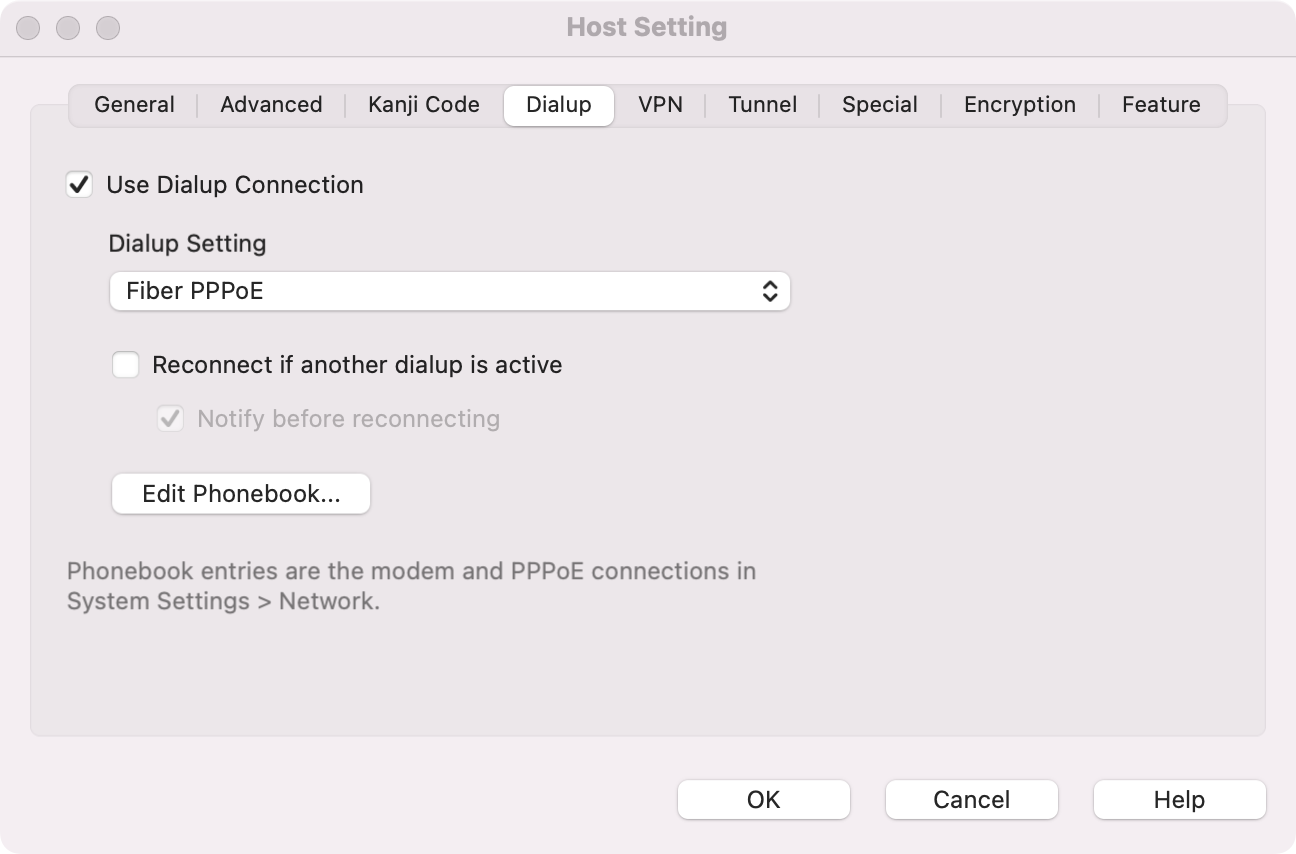
Open the Dialup tab of Host Setting and click Edit Phonebook....
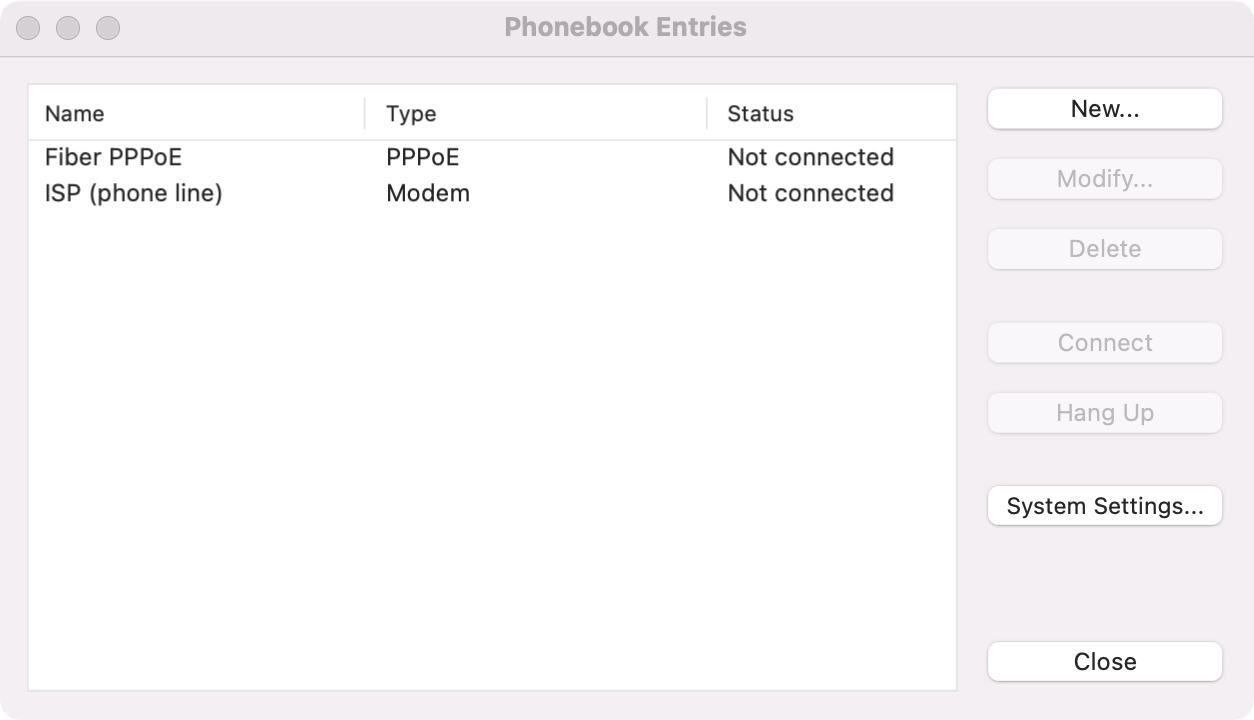
The list of phonebook entries appears. As with the Windows phonebook, you choose one of these to dial. Click New....
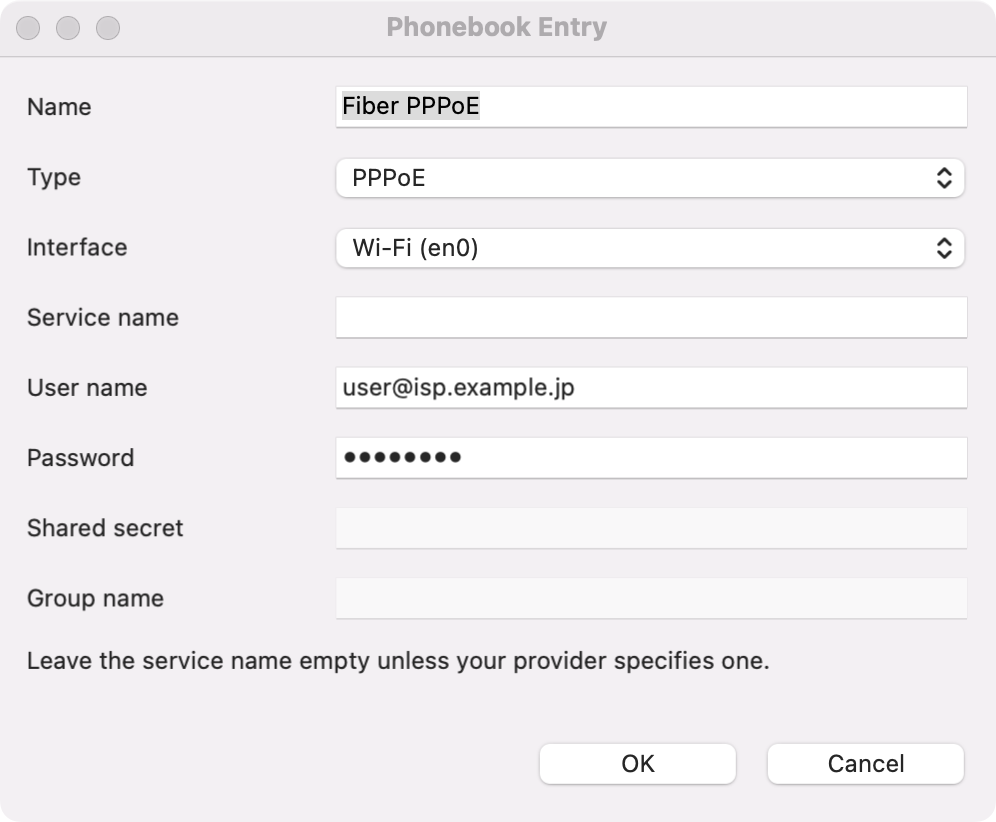
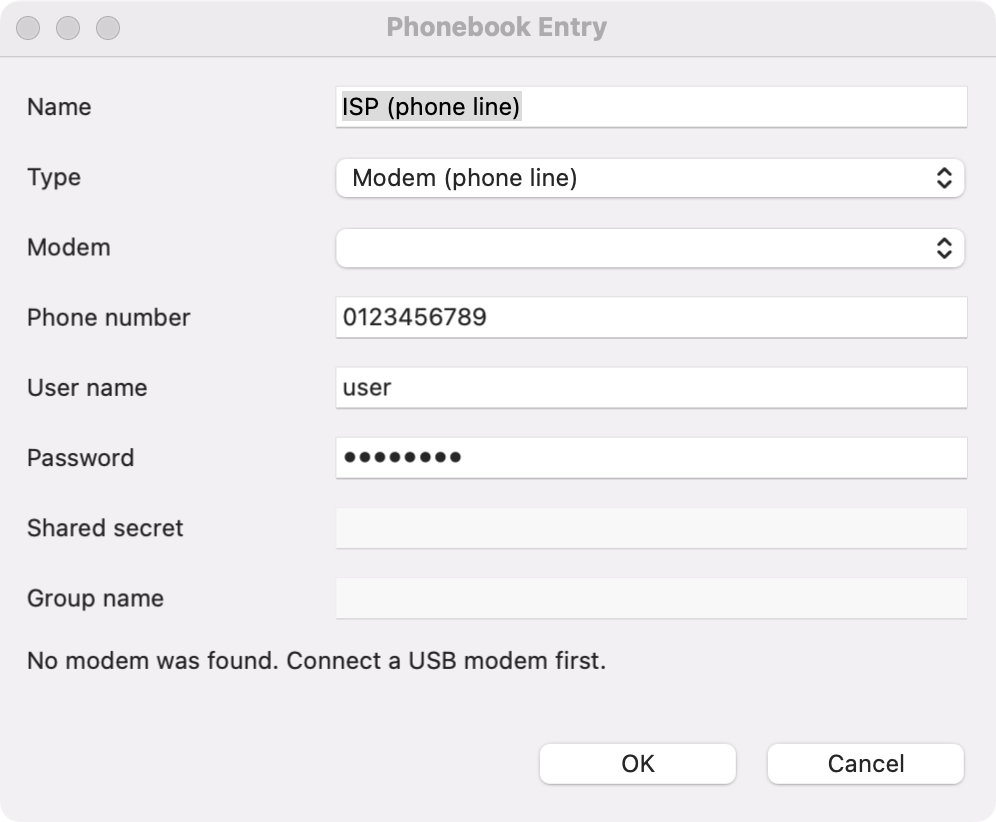
Choose the type and enter what your provider gave you.
- PPPoE (fiber and so on): choose the interface (Ethernet or Wi-Fi) and enter the user name and password. Leave the service name empty unless specified.
- Modem (phone line): connect a USB modem to the Mac, then enter the modem, phone number, user name and password. Without a modem, "No modem was found" is shown.
Click OK and enter the Mac administrator password (the entry is registered in System Settings > Network, where it also appears).
In the list you can also Connect, Hang Up, Modify... and Delete the selected entry. The status (Connected / Not connected) updates live.
2. Choose the entry for the host
After closing the list, check Use Dialup Connection and choose the entry in Dialup Setting.
- Reconnect if another dialup is active: if another entry is connected, hang it up and dial the chosen one. Without it, the current connection is used.
- Notify before reconnecting: asks before reconnecting.
3. Connect
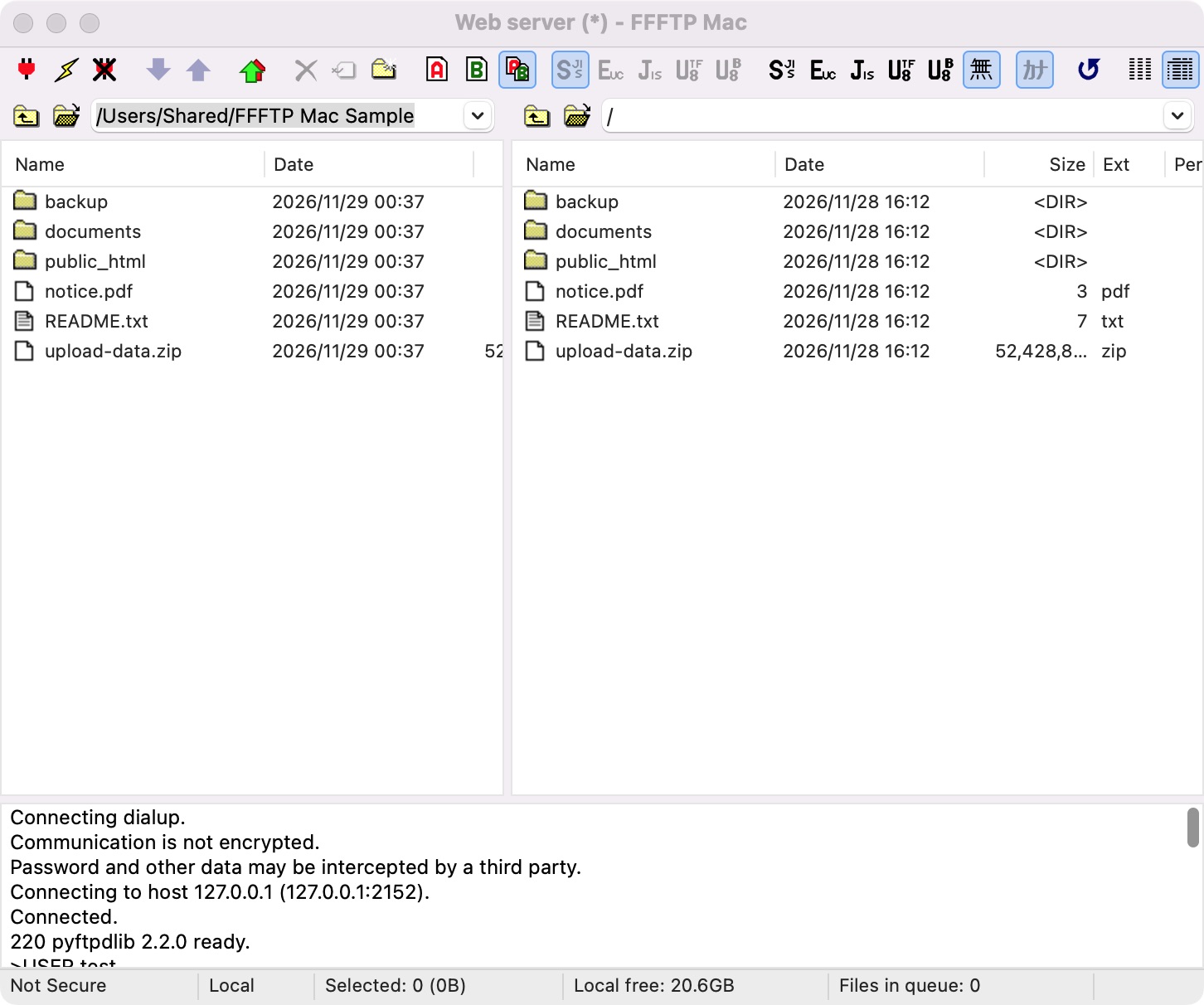
Connect to the host as usual. FFFTP Mac dials first, then connects to the host. "Connecting dialup." appears in the task window.
Hang up when quitting
Choose Settings... from the Option menu and open the Connecting tab. Check Close dialup connection (RAS) at program exit to hang up when you quit FFFTP Mac. Confirm before closing dialup connection asks before hanging up.
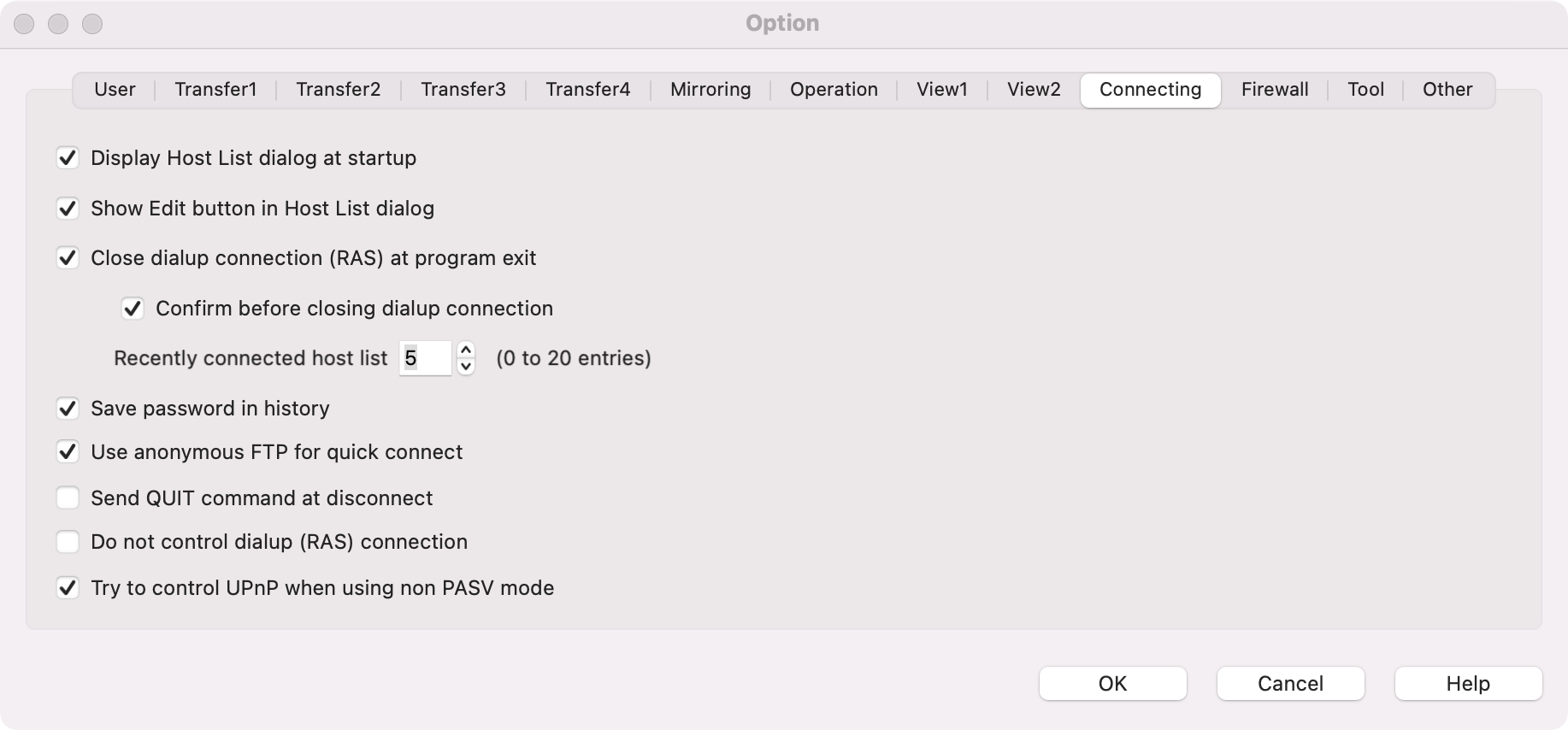
If you never use dial-up, Do not control dialup (RAS) connection turns the dial-up features off.
VPN (Mac only)
For hosts that can only be reached through a VPN, such as an office server. It works like dial-up.
1. Create a VPN
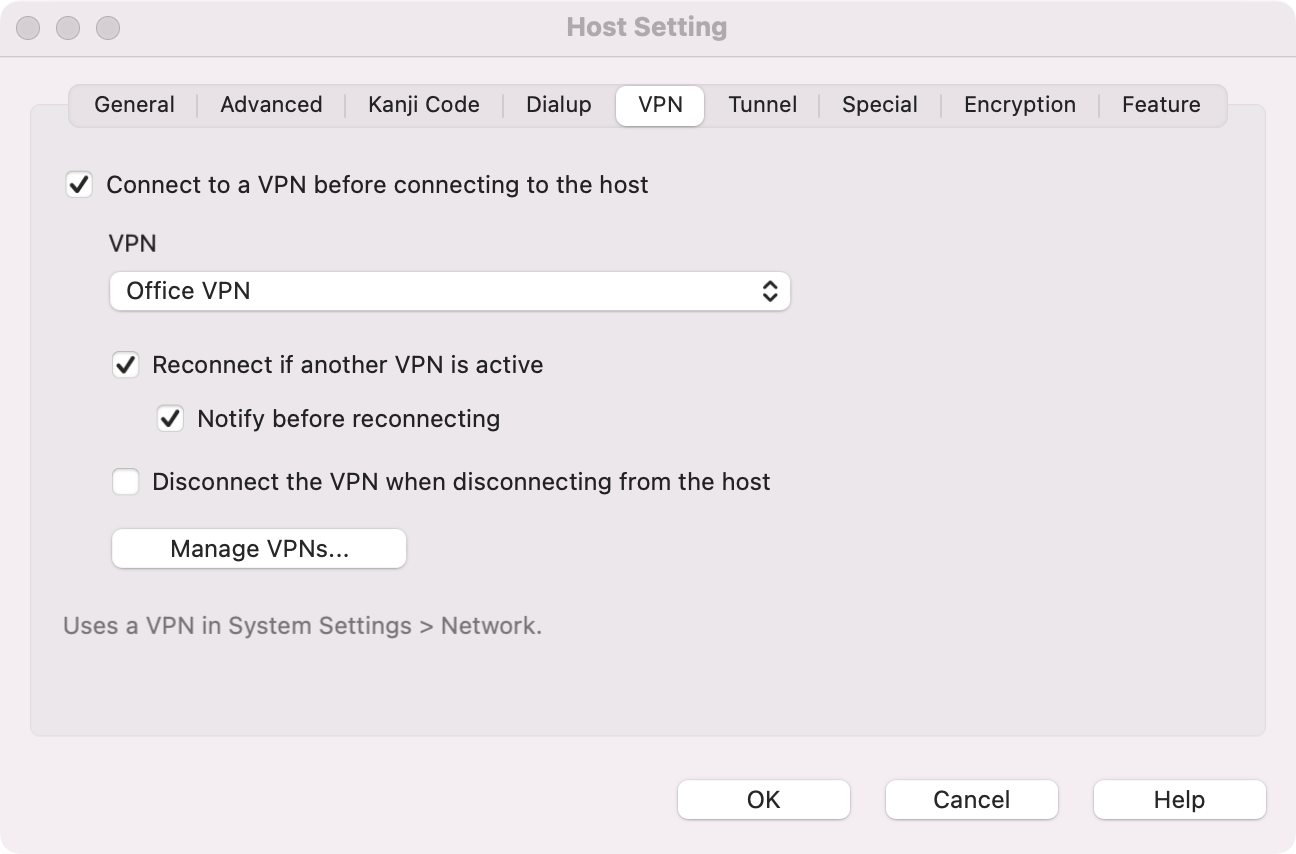
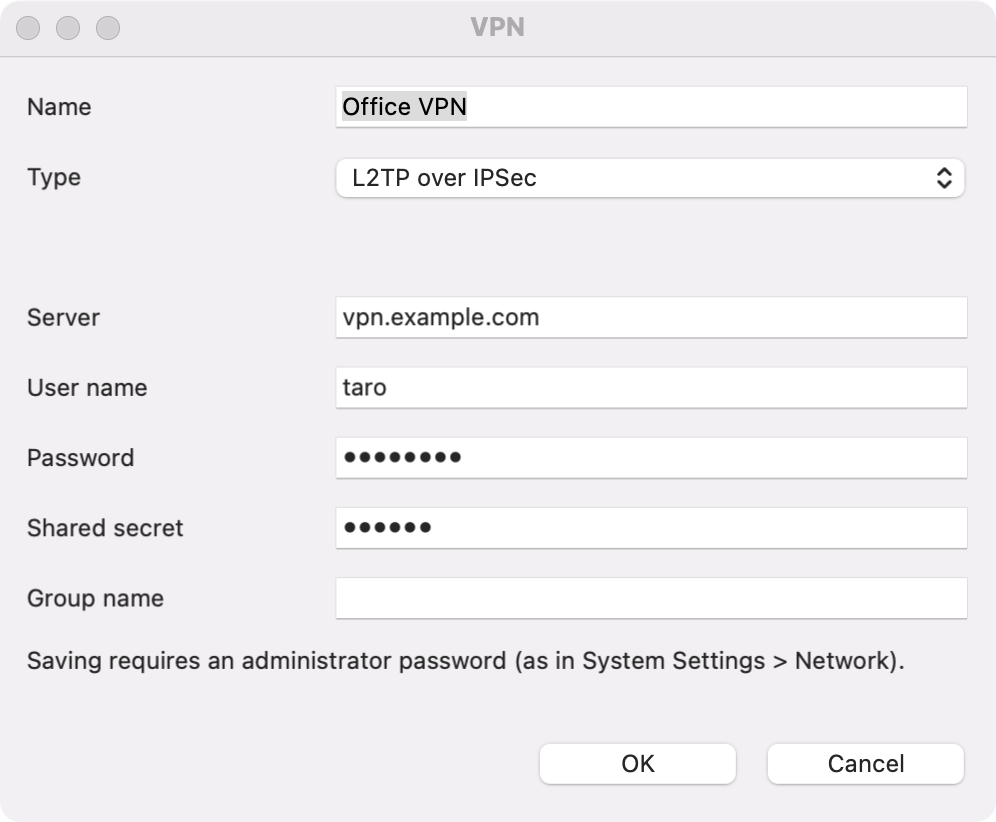
On the VPN tab of Host Setting, click Manage VPNs..., then New....
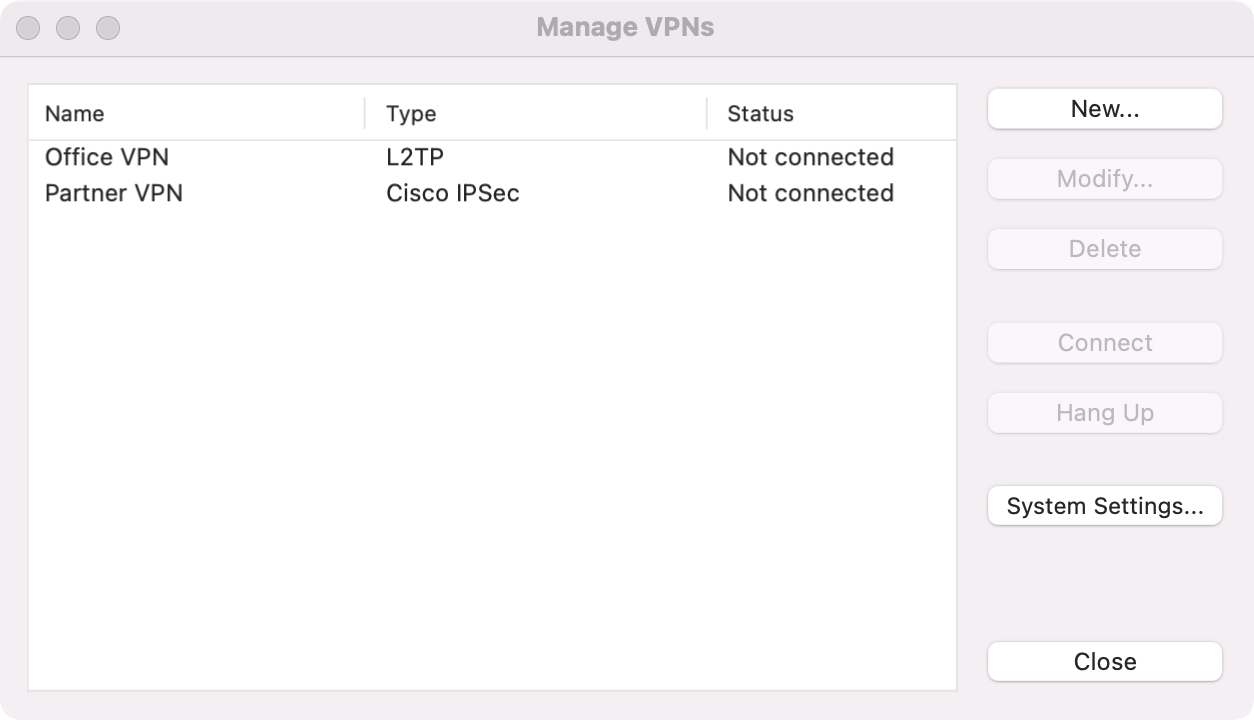
Choose the type and enter what your VPN administrator gave you.
- L2TP over IPSec: server, user name, password, shared secret.
- Cisco IPSec: server, user name, password, shared secret, group name.
- IKEv2: server, remote ID, user name, password. IKEv2 is created as a configuration profile and installed in System Settings > Profiles (follow the instructions on screen).
2. Choose the VPN for the host
Check Connect to a VPN before connecting to the host and choose the VPN. With Disconnect the VPN when disconnecting from the host, a VPN that FFFTP Mac connected is disconnected with the host (a VPN you connected yourself is left alone).
If both dial-up and a VPN are chosen, FFFTP Mac dials first, then connects the VPN.