Work with files and folders
Select items in either list, then use the operations below. They act on the list you clicked last (the status bar shows "Local" or "Host"). The right-click menu has the same items.
| Operation | Toolbar / shortcut | What it does |
|---|---|---|
| Delete | ✕ / ⌘⌫ | Asks first. Delete All deletes the rest without asking. Local files go to the Trash |
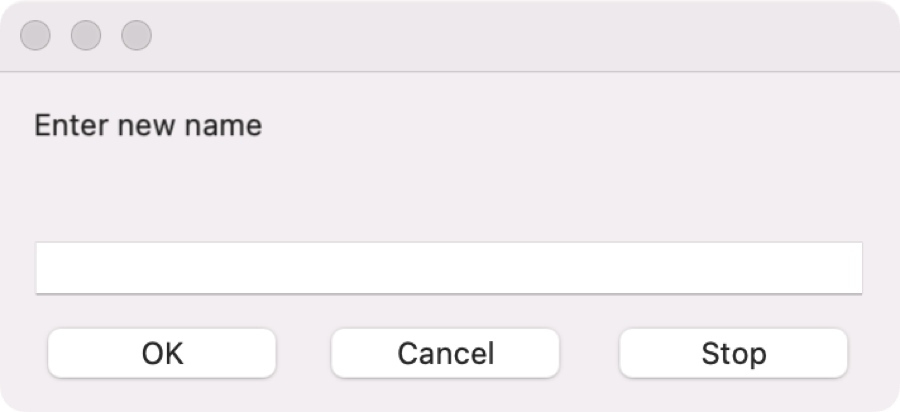
| Rename | ⌃N | Enter a new name |
| New Folder | ⌃K | Enter the new folder's name |
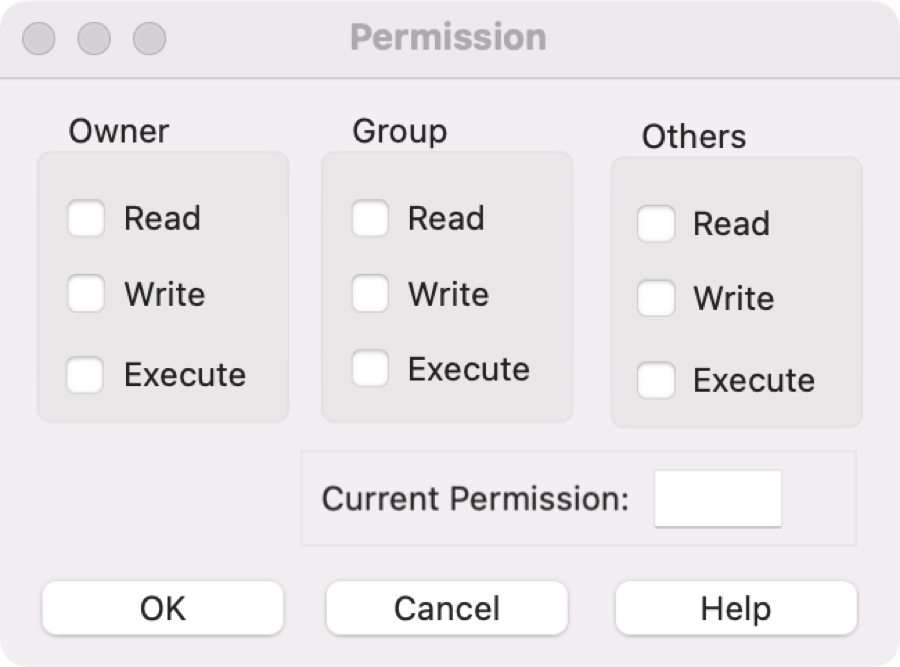
| Permissions | ⌃T (host only) | Tick read / write / execute, or type a number such as 644 |
| Specify command | Commands menu | Send an FTP command directly to the server |
| File size | Commands menu | The total size of the selection (including folder contents) |
Moving between folders
- Double-click a folder to open it. Use the up button above the list to go up one level.
- You can also type a folder path in the field above the list and press return.
- With Synchronize Folder Movement (toolbar) on, moving on one side moves the other side to the folder with the same name.
Moving files on the host
In the host list, drag a file onto a folder to move it into that folder (the original's "In Server File Move").
Opening files
Double-click a file to open it. Host files are downloaded first and then opened. Choose the app on the Tool tab of Settings (Viewer).